
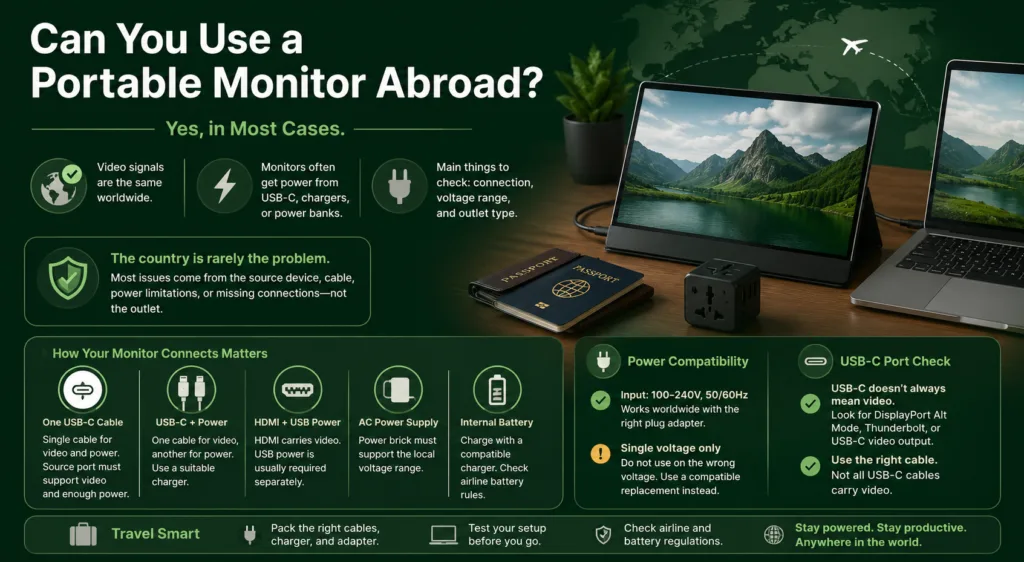
Yes, you can use a portable monitor abroad. The display signal works the same worldwide, and many portable monitors are powered through a laptop, tablet, USB-C charger, or power bank. Before traveling, check the monitor’s connection type, the power adapter’s input voltage rating (if one is included), and the plug type used in your destination.
If the charger is labeled Input: 100–240V, 50/60Hz, it can usually operate on both common 120V and 220–240V electrical systems. You would normally need only the correct plug adapter. A voltage converter is relevant only when the charger or external power supply does not accept the destination voltage.
The country is rarely the compatibility problem. Portable monitor failures abroad are more commonly caused by a USB-C port that does not output video, a charge-only cable, insufficient USB power, or a missing HDMI power connection.
Identify How the Monitor Receives Video and Power
Portable monitors do not all connect in the same way. Some use one USB-C cable for both video and power, while others require separate connections. Knowing which arrangement your monitor uses determines what needs to go in your travel bag.
| Monitor setup | What must be compatible | What you may need abroad |
|---|---|---|
| One USB-C cable | The source port must support video output and provide enough power. The cable must carry video, not only charging. | A compatible laptop or tablet charger and the correct destination plug adapter. |
| USB-C video with separate USB-C power | One connection carries video while the second powers the monitor. | A USB charger with suitable output, a plug adapter, and two cables. |
| HDMI or mini-HDMI with USB power | HDMI carries the picture but normally does not power the monitor. | The correct HDMI cable, a USB power cable, a charger, and a plug adapter. |
| Dedicated AC power supply | The supplied power brick must accept the destination voltage. | A plug adapter if the brick supports 100–240V, or a manufacturer-approved replacement power supply if it does not. |
| Monitor with an internal battery | The battery must be charged through a compatible charger, and airline battery rules may apply. | A suitable charger, a plug adapter, and confirmation of the airline’s battery policy. |
A USB-C Port Does Not Automatically Support a Monitor
USB-C describes the connector shape, not everything the port can do. A laptop, phone, or tablet may have a USB-C port that supports charging and data but does not send a display signal.
For a direct USB-C monitor connection, the source device commonly needs support for DisplayPort Alt Mode, Thunderbolt display output, or another documented USB-C display function. Check the device specifications for terms such as:
- DisplayPort over USB-C
- DisplayPort Alt Mode
- USB-C video output
- External display support
- Thunderbolt with display output
The cable also matters. A USB-C cable supplied with a phone charger may charge the monitor but fail to carry video. Pack the monitor’s original cable or another cable specifically rated for video and the resolution you intend to use.
A plug adapter cannot fix a missing video signal. If the monitor powers on but displays “No Signal,” check the source port, cable capability, selected monitor input, and display settings before suspecting the foreign outlet.
Check the Charger Label, Not Only the Monitor
A portable monitor powered through USB-C receives low-voltage power from the laptop, charger, dock, or power bank. The device connected to the wall outlet is what must handle the local mains voltage.
Look for the word Input on the charger or power brick.
Input: 100–240V, 50/60Hz
This is a wide-range power supply. It can usually be connected to common electrical systems worldwide with a suitable plug adapter. The adapter changes the plug shape; it does not alter the voltage.
Input lists only one voltage range
A charger marked only for 100–120V should not be connected directly to a 220–240V supply. A charger marked only for 220–240V may not work correctly on a 120V supply. Use a compatible replacement recommended for the monitor instead of assuming a small travel converter will be suitable.
Do not confuse the charger’s input rating with its output rating. Text such as 5V, 9V, 12V, 15V, or 20V normally describes the low-voltage output sent to the monitor. The line beginning with “Input” determines whether the charger can be connected to the destination’s electrical system.
When a Plug Adapter Is Enough
You normally need only a plug adapter when all of the following are true:
- The charger accepts the destination voltage.
- The charger supports the required USB output or power profile.
- The source device can send video to the monitor.
- The cables support the required video and power functions.
- The travel adapter fits the destination outlet securely.
If the charger uses a grounded plug, use an adapter that preserves the protective-earth connection. A basic two-pin adapter may physically accept a three-pin plug while leaving the grounding contact disconnected.
A universal travel adapter can be convenient for a USB-C charger, but it should be rated for the destination system and the equipment connected to it. Avoid stacking several loose plug adapters together, especially in worn hotel outlets.
When One USB-C Cable Is Not Enough
A monitor may work from one cable at home but become unstable with another laptop, tablet, dock, or cable. Typical symptoms of insufficient power include:
- The screen turns on and immediately switches off.
- The display disconnects when brightness is increased.
- The picture flickers or resets when the source device is charging.
- The monitor works at a low brightness but not at its normal setting.
- The screen powers on but USB accessories connected through it do not work.
If the monitor has a second USB-C power input, connect that port to a wall charger while keeping the video cable connected to the source device. This separates the display signal from the monitor’s power demand.
Use a charger that meets the monitor manufacturer’s stated requirements. A charger with a high maximum wattage is not automatically harmful; compatible USB-C equipment negotiates supported power levels. The concern is whether the charger, cable, and monitor support the required output combination.
USB-A power can work with some portable monitors, but it may provide less power than the monitor expects. Do not depend on a hotel television, airplane-seat USB port, or an unknown public charging socket unless the monitor documentation confirms that the available output is sufficient.
HDMI Connections Usually Need a Second Power Cable
An HDMI cable normally carries video and audio but not the operating power required by a portable monitor. A typical travel setup therefore uses:
- An HDMI, mini-HDMI, or micro-HDMI cable for the picture
- A USB cable for monitor power
- A USB wall charger or powered USB port
- A plug adapter for the destination outlet
Some monitors have several USB-C ports with different functions. One may accept video and power, while another accepts power only. Check the labels beside the ports and the monitor manual before departure.
Pack the exact HDMI cable or adapter required by both devices. Full-size HDMI, mini-HDMI, and micro-HDMI connectors are not interchangeable without the correct cable or adapter.
Phones and Tablets Need Video-Output Support
A phone or tablet can charge through USB-C without being able to run an external monitor. Confirm that the specific model supports wired external displays. This information should come from the device manufacturer rather than from the presence of a USB-C connector alone.
Even when video output is supported, the mobile device may not provide enough power for the display. A separately powered monitor arrangement is more dependable: connect the phone or tablet to the monitor for video and connect the monitor’s power input to a wall charger or suitable power bank.
Some mobile devices mirror the screen, while others provide a desktop-style interface or support only selected applications. That behavior is controlled by the source device and operating system, not by the country where the monitor is used.
Game Systems and Media Devices May Require Their Own Adapter
Do not assume that every USB-C game system or streaming device can connect directly to a USB-C monitor. Some products use a dock, an HDMI adapter, a proprietary connection mode, or a powered accessory to produce video.
For an HDMI-based arrangement, account for three separate needs:
- Power for the game system or media device
- Power for the portable monitor
- A compatible video cable or dock between them
Check the input-voltage label on every charger included in the setup. The monitor charger may be universal even when another power supply in the same bag is not.
Traveling With a Battery-Equipped Portable Monitor
Most slim portable monitors do not contain a battery, but some models do. Check the specifications or battery label before flying.
Airlines and national aviation authorities may apply lithium-battery rules based on battery type, watt-hour rating, installation, and baggage location. Keep the monitor protected from damage and accidental activation, and check the operating airline’s policy for your route. A damaged, swollen, overheating, or recalled battery should not be taken on a flight.
A separate power bank is treated as a spare battery rather than as part of the monitor. Power banks commonly have stricter baggage rules and generally need to remain in carry-on baggage. Confirm the permitted watt-hour rating with the airline before departure.
Test the Exact Travel Setup Before Departure
Testing only the monitor is not enough. Assemble the same combination you plan to carry:
- Connect the intended laptop, phone, tablet, or game system.
- Use the exact USB-C or HDMI cable going into your bag.
- Use the travel charger rather than a desktop dock.
- Run the monitor at the brightness and resolution you expect to use.
- Disconnect and reconnect it after the source device wakes from sleep.
- Confirm that the monitor remains stable while the source device is charging.
Photograph the input label on the charger before packing. Small voltage text can be difficult to read during a trip, and the photograph gives you a record if the charger becomes separated from the monitor.
Portable Monitor Packing Checklist
- Portable monitor in a protective sleeve or rigid case
- Video-capable USB-C cable supplied with or approved for the monitor
- Correct HDMI cable or video adapter when using HDMI
- Separate USB power cable when required
- Charger with a confirmed input-voltage range
- Destination-compatible plug adapter
- Grounded travel adapter when the power supply requires grounding
- Manufacturer-approved power supply for models using a barrel connector
- Airline policy checked for monitors with internal batteries
- Power bank rating checked when carrying backup power
Practical decision: If your source device supports the monitor’s video connection, your cables carry the required signal, and the wall charger is marked for the destination voltage, the portable monitor can be used abroad. In many cases, the only country-specific item you need is the correct plug adapter.